

Organization Logo
Customize the appearance of MobilOS for your team and, in some cases, for your clients, by adding your organization's logo. This functionality is only available for users with the MANAGER role.
Where Does the Logo Appear?
Your organization's logo can be displayed in places such as:
- In the header of the Manager and Technician panels.
- In documents generated by the system, such as Quotes and Work Orders.
- On the public quote viewing page.
Accessing Logo Configuration
Go to 'My Profile'
As a MANAGER, access the My Profile page via the side menu.
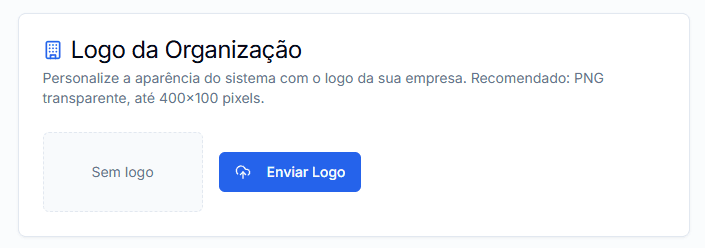
Locate the 'Organization Logo' Section
Uploading or Changing the Logo
Prepare your Logo File
Before uploading, make sure your logo meets the following recommendations:
- Format: PNG (preferably with transparent background), JPG, WEBP, or SVG.
- File Size: Maximum 2MB.
- Recommended Dimensions: A horizontal logo approximately 400x100 pixels is ideal.
Click 'Upload Logo' or 'Change Logo'
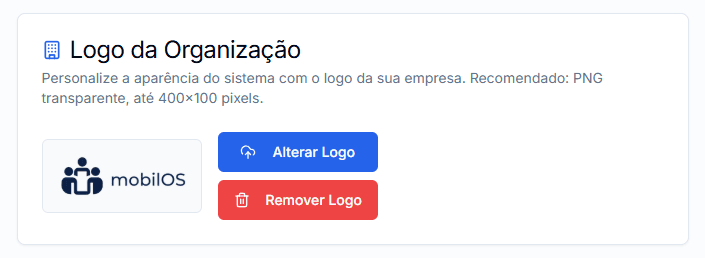
Click the Upload Logo button (or Change Logo, if one already exists).
Select and Upload
Check for Update
Removing the Logo
If you wish to remove your organization's logo and revert to displaying the default MobilOS logo:
Click 'Remove Logo'
If a logo is already present, click the Remove Logo button.
Confirm Action
Browser Cache
Sometimes, due to browser cache, the old logo may continue to appear. Try clearing the cache or doing a 'hard refresh' (Ctrl+Shift+R) if the new logo doesn't appear.
Customizing MobilOS with your organization's logo helps reinforce your brand identity.