

Managing Quotes
The quote functionality in MobilOS allows you to create, send, and manage commercial proposals for your clients professionally and organized. Approved quotes can be easily converted into Work Orders.
Importance of Quotes
- Formalizes the proposal of services and values to the client.
- Increases professionalism and transparency.
- Facilitates the tracking of negotiations.
- Streamlines the creation of Work Orders after approval.
Creating a New Quote
Follow these steps to create a new commercial proposal:
Access the Quotes Area
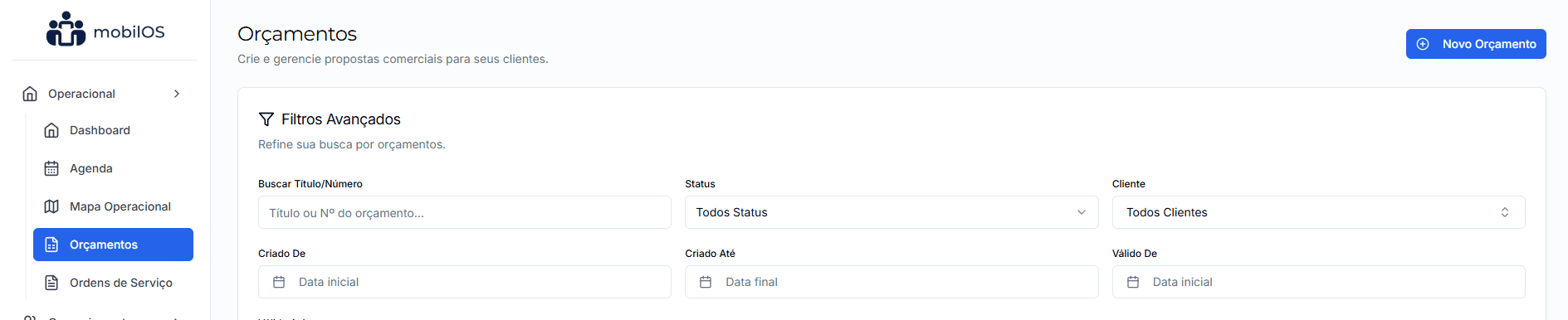
In the manager panel's side menu, in the 'Operational' section, click on 'Quotes'.
Start Creation
On the quotes listing page, click the New Quote button.
Fill in Initial Details (Step 1)
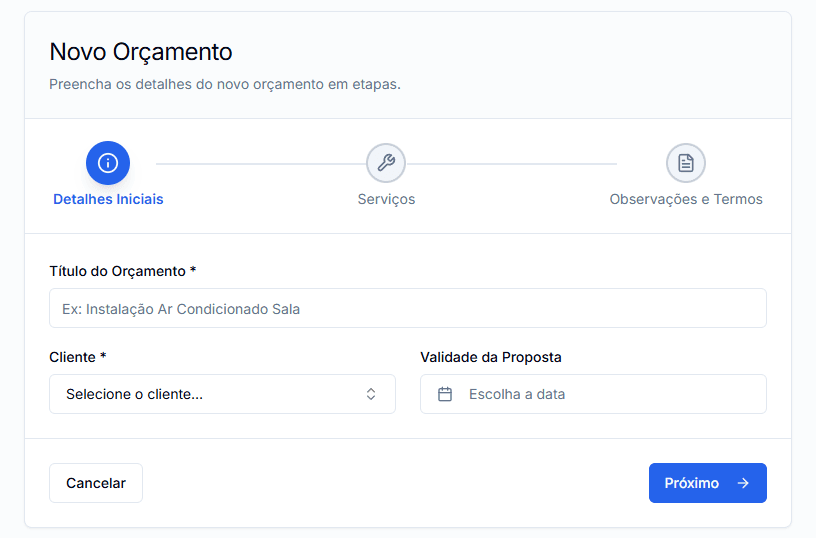
You will be guided through a multi-step form. In the first step:
- Quote Title *: A descriptive name for the proposal (Ex: 'Complete Air Conditioner Installation - Room and Bedrooms').
- Client *: Select an existing client from your database. If the client is not registered, you can quickly create them in the selector itself.
- Proposal Validity: Set a date until which the quote is valid (optional).
Add Services (Step 2)
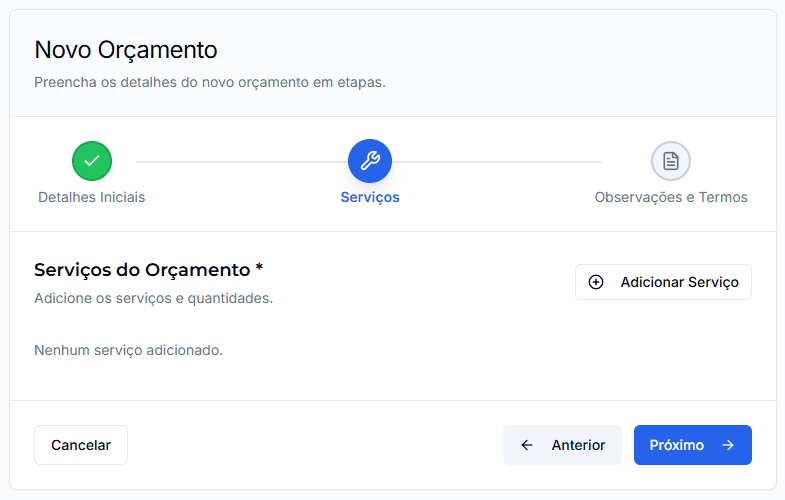
In the second step, you will detail the services offered:
- Click 'Add Service' to search for and select items from your Service Catalog. You can also create a new service directly from here.
- For each service added, adjust the quantity. The unit price will come from the catalog, but the subtotal will be calculated automatically.
- You can remove added services by clicking the trash can icon.
Notes and Terms (Step 3)
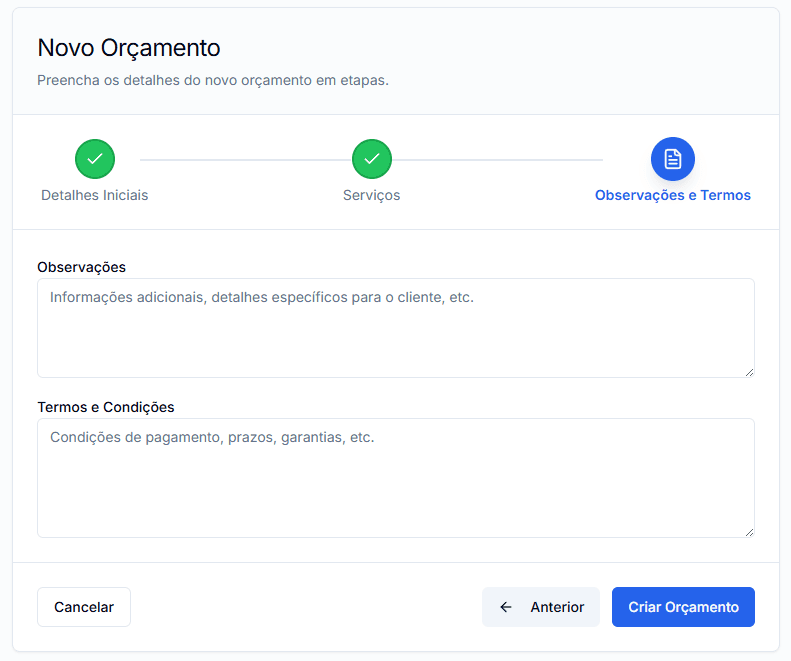
In the last step, add complementary information:
- Notes: Space for additional notes, specific service details, or any relevant information for the client.
- Terms and Conditions: Define payment conditions, deadlines, warranties, or other contractual clauses.
After filling everything in, click 'Create Quote' (or 'Save Changes' if editing).
Cloning Quotes
On the details page of an existing quote, you will find the 'Clone' option. This creates a copy of the quote that you can edit and send to another client or to the same client with minor modifications, saving time.
Managing Existing Quotes
The main 'Quotes' page lists all your proposals. You can use the advanced filters to refine the search by status, client, creation period, or validity.
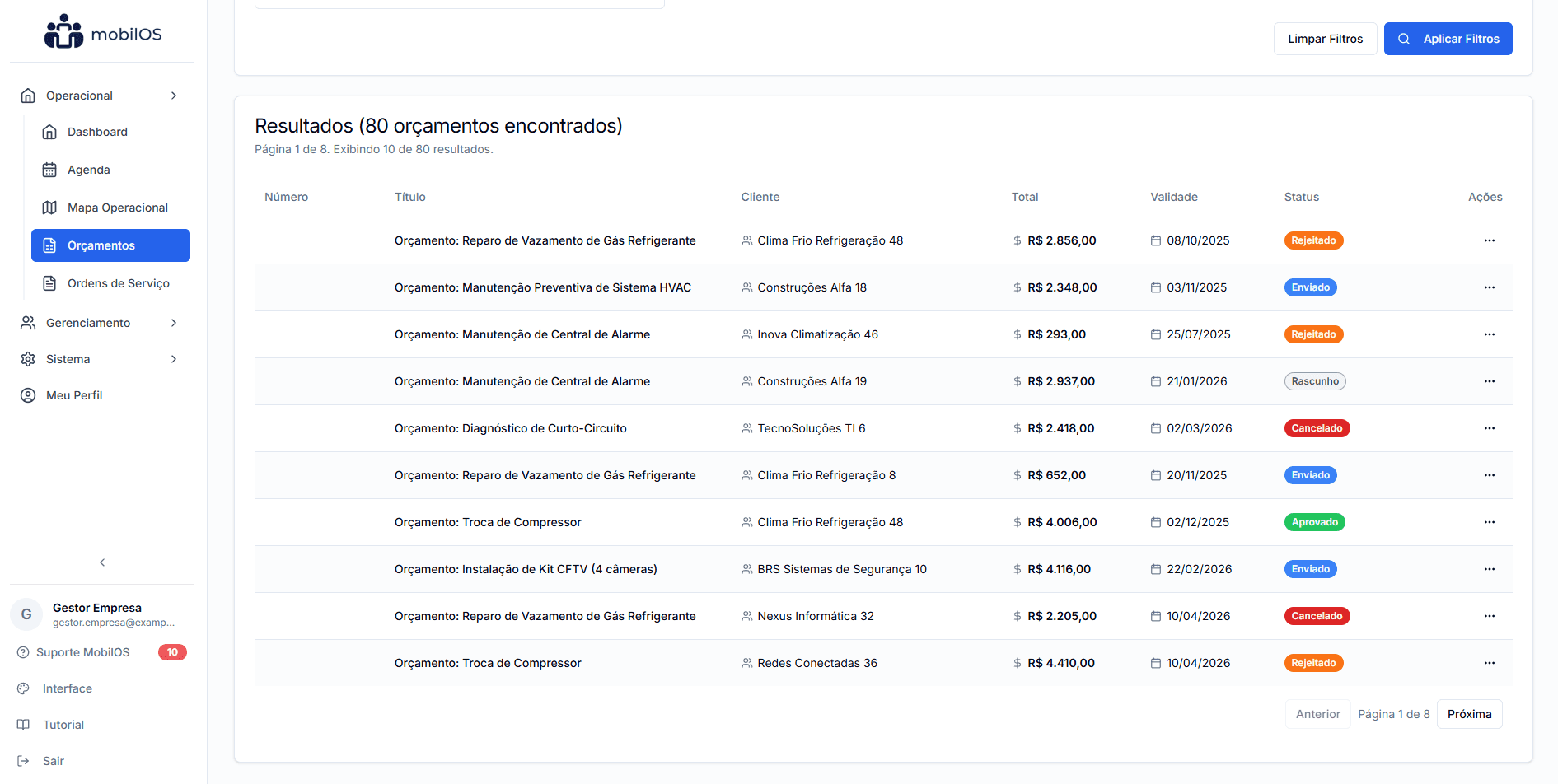
Actions per Quote
In the 'More Options' menu for each quote in the list, you can:
- View Details: Opens the complete quote viewing page.
- Edit: Allows you to modify the quote (usually if it's still 'Draft').
- Convert to WO: Available for 'Approved' quotes. Starts the process of creating a Work Order based on this quote.
- Delete: Removes the quote (usually if it's 'Draft', 'Canceled', or 'Rejected').
Public Link for Clients
When a quote is sent to the client by email, they receive a secure public link for viewing. On this public page, the client can:
- View all quote details.
- Approve the quote directly.
- Reject the quote, with the option to provide a reason.
Notifications
The manager will be notified when a client approves or rejects a quote through the public link.
Efficient quote management is a crucial step to closing more deals and ensuring that Work Orders are created with the correct information.