

Managing Work Orders (WO)
Work Orders are the heart of your field operation. This section explains how to create, view, edit, assign, and track the progress of WOs in the manager panel.
Creating a New Work Order
You can create a WO in two main ways: from an approved quote or by creating a standalone WO.
Converting a Quote to WO
This is the recommended way if a quote has already been approved by the client.
Locate the Approved Quote
Go to the 'Quotes' section, find the quote with 'Approved' status, and, in the actions menu or on the quote details page, click 'Convert to WO'.
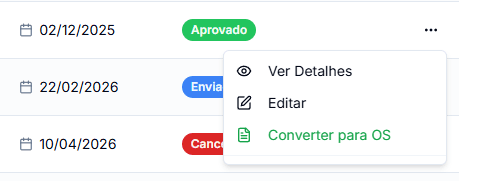
Confirm and Adjust (Optional)
When converting, much of the quote information (client, services, description) will be automatically transferred to the new WO.
A modal will appear allowing you to assign a technician and set an initial schedule for the WO to be created. These fields are optional and can be defined/changed later.
Creating a Standalone WO
To create a WO directly, without a prior quote:
Access the WO Area
In the side menu, in the 'Operational' section, click on 'Work Orders'.
Start Creation
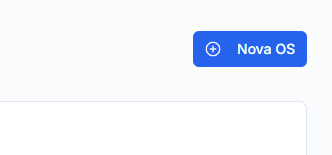
On the WO listing page, click the New WO button.
Multi-Step Form
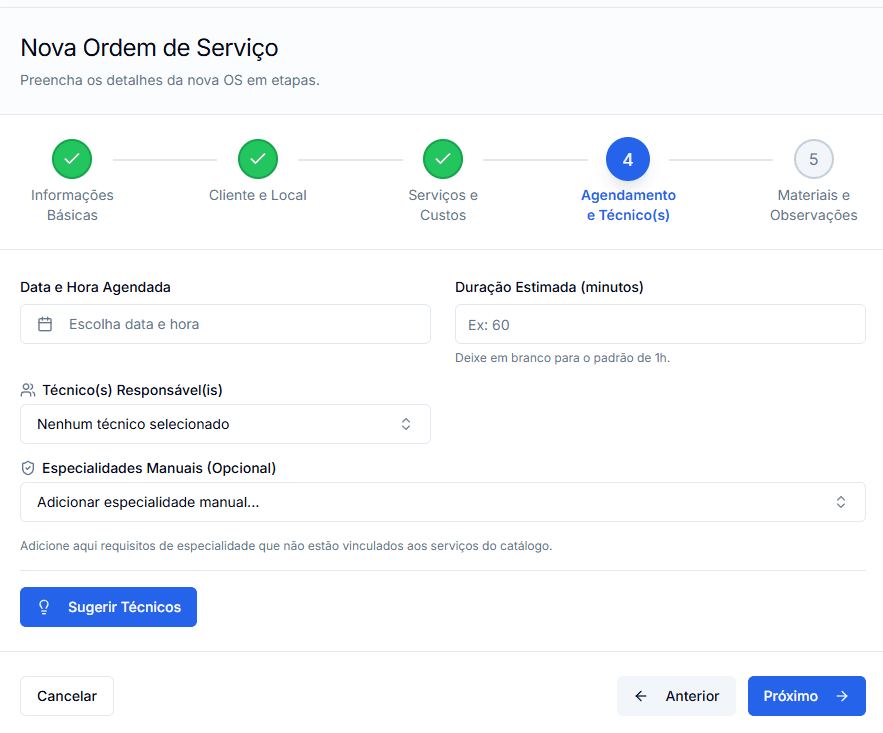
You will be guided through a multi-step form to fill in all the necessary details, including:
- Basic Information: WO title, priority, and description.
- Client and Location: Client selection, equipment (optional), and service address.
- Services and Costs: Adding services from your catalog and cost estimation.
- DocsManagerWorkOrders.creatingWO.creatingStandalone.step3.item4
- Materials and Notes: Recording materials to be used and internal notes.
After filling everything in, click 'Create Work Order'.
Cloning Work Orders
On the details page of an existing WO, you can use the 'Clone to New WO' option. This is useful for quickly creating a new WO with similar information to a previous one, saving typing time.
Managing Existing Work Orders
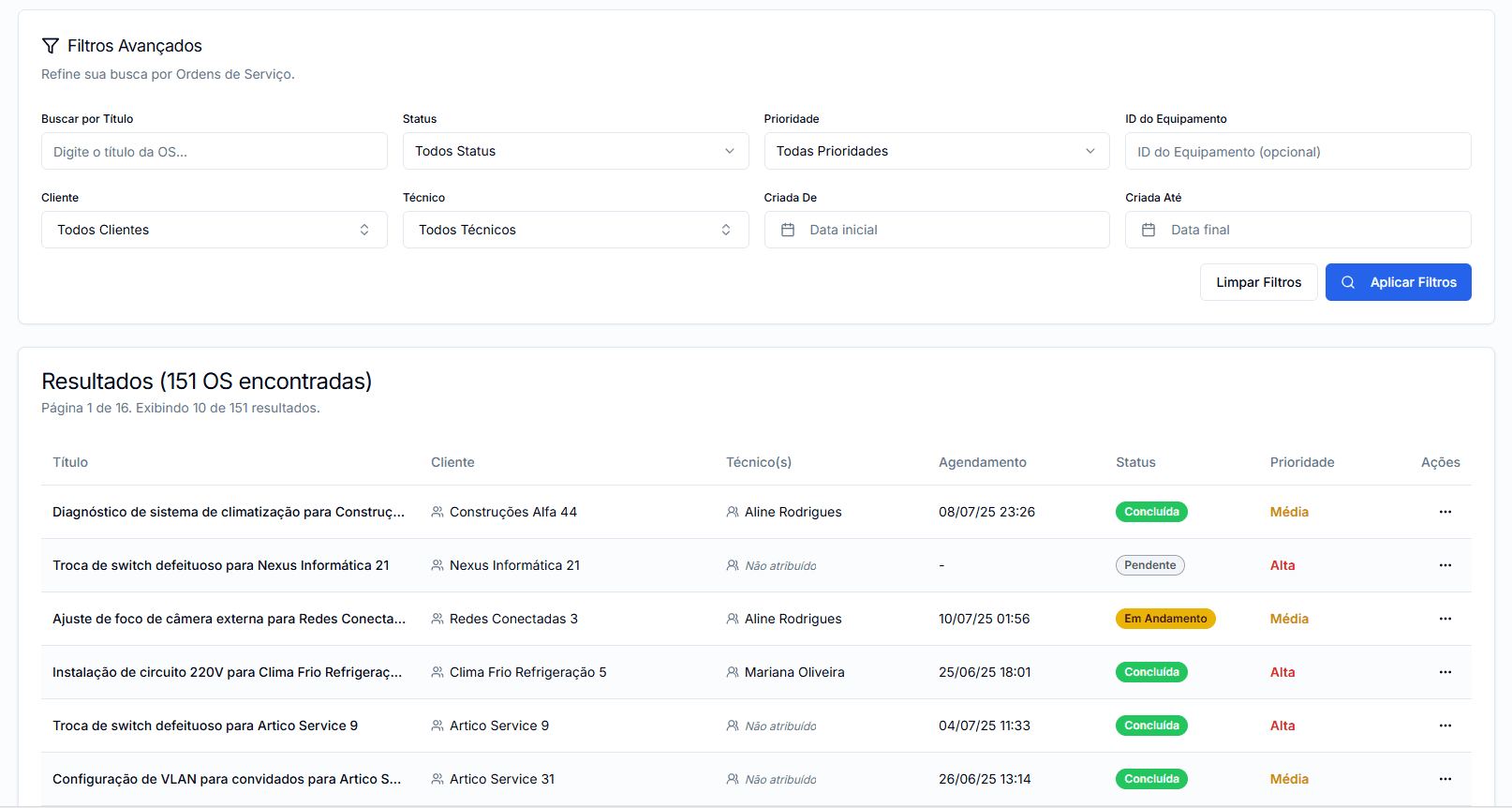
The 'Work Orders' page displays a list of all WOs in your organization. Use advanced filters to find specific WOs by status, priority, client, technician, equipment, or period.
Actions per WO
In the 'More Options' menu for each WO, you can:
- View Details: Opens the complete WO viewing page.
- Edit: Allows you to modify the WO (if status allows).
- Delete: Removes the WO (if status allows).
WO Details Page
This page provides a complete view of a specific Work Order, including client, location, services, costs, digital proofs (photos and signature), internal comments, and activity history.
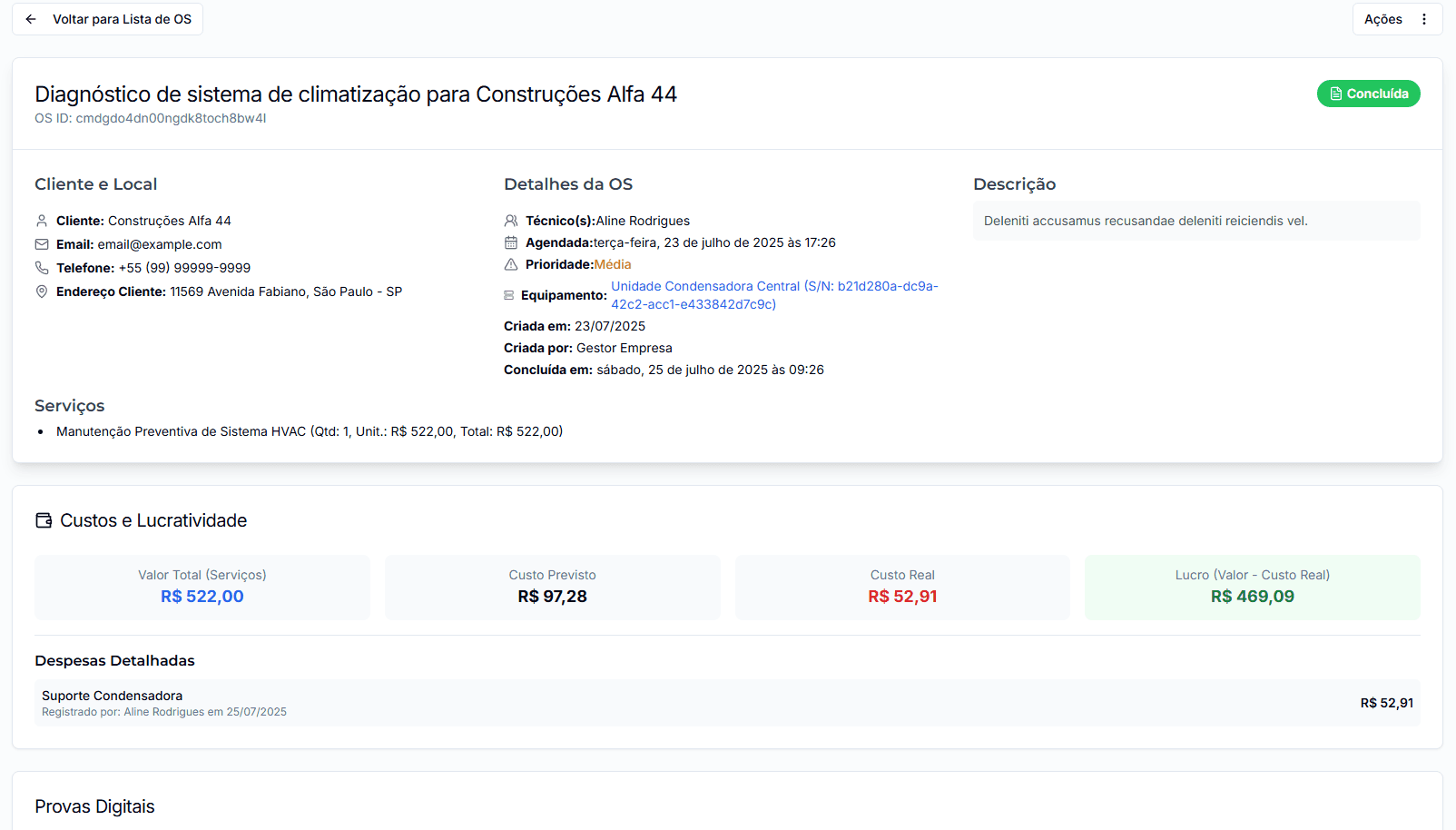
Actions on the Details Page (Manager):
- Edit WO: Allows changing any WO data (if status allows).
- Print/PDF: Generates a printable version of the WO.
- Clone to New WO: Creates a copy of this WO.
- Send Rating Link: (For Completed WOs) Sends a link to the client to rate the service.
- Cancel WO: Changes the WO status to 'Canceled' (if applicable).
WO Status Flow
A WO generally progresses through the following statuses:
- Pending: Newly created, awaiting scheduling or assignment.
- Scheduled: Date/time and technician(s) defined.
- In Progress: The technician has started service execution.
- Completed: The service has been completed by the technician.
- Canceled: The WO will not be executed.
The manager and technician (for WOs assigned to them) can update these statuses.
Mastering Work Order management is essential for the success of your operation. Use all available tools to keep everything organized and efficient.