

Digital Proofs: Photos and Signature
Recording digital proofs is an essential part of executing Work Orders (WO) in MobilOS. This includes attaching photos of the performed service and collecting the client's digital signature as proof of completion and satisfaction.
Attaching Service Photos
You can attach multiple photos to a WO to document the before, during, and after of the service, replaced parts, site conditions, or any other relevant aspect.
Access the Photos Section
On the WO details page, locate the 'Digital Proofs' section.
Add a Photo
Tap the {strong} button. This will open your device's camera or photo gallery.
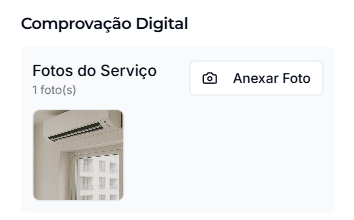
Upload and View
After selecting or taking the photo, it will be processed and uploaded to the system. Attached photos will be visible in the 'Photographic Proofs' section of the WO, both for you and the manager.
Tips for Good Photos
- Ensure adequate lighting.
- Capture angles that clearly show the work performed or the problem found.
- Take 'before' and 'after' photos to evidence improvement.
Collecting the Client's Digital Signature
After service completion, it is essential to collect the client's digital signature as a form of approval and acceptance of the work performed.
When to Collect the Signature?
The client's signature can only be collected after the Work Order status has been changed to Completed. Make sure all services have been performed and information has been properly recorded before requesting the signature.
Access the Signature Option
Open the Signature Panel
Tap 'Collect Signature'. A signature panel will be displayed on your device's screen.
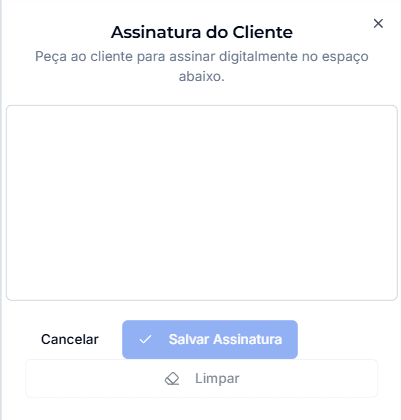
Signature Collection
Hand the device to the client and ask them to sign directly on the screen with their finger or a stylus pen.
Save Signature
Sealed WO
Once the client's signature is collected, the Work Order is considered 'sealed'. This means that certain WO information will no longer be editable by the technician to ensure the integrity of the record.
Proper photo recording and client signature collection are practices that increase professionalism, provide backing for your company, and improve transparency with the client.