

Executing a Work Order
By selecting a task from the 'My Tasks' list, you access the Work Order (WO) details page. This screen contains all the information needed to execute the service and the tools to record your progress.
Detailed WO Information
The WO details page is divided into sections for easy viewing:
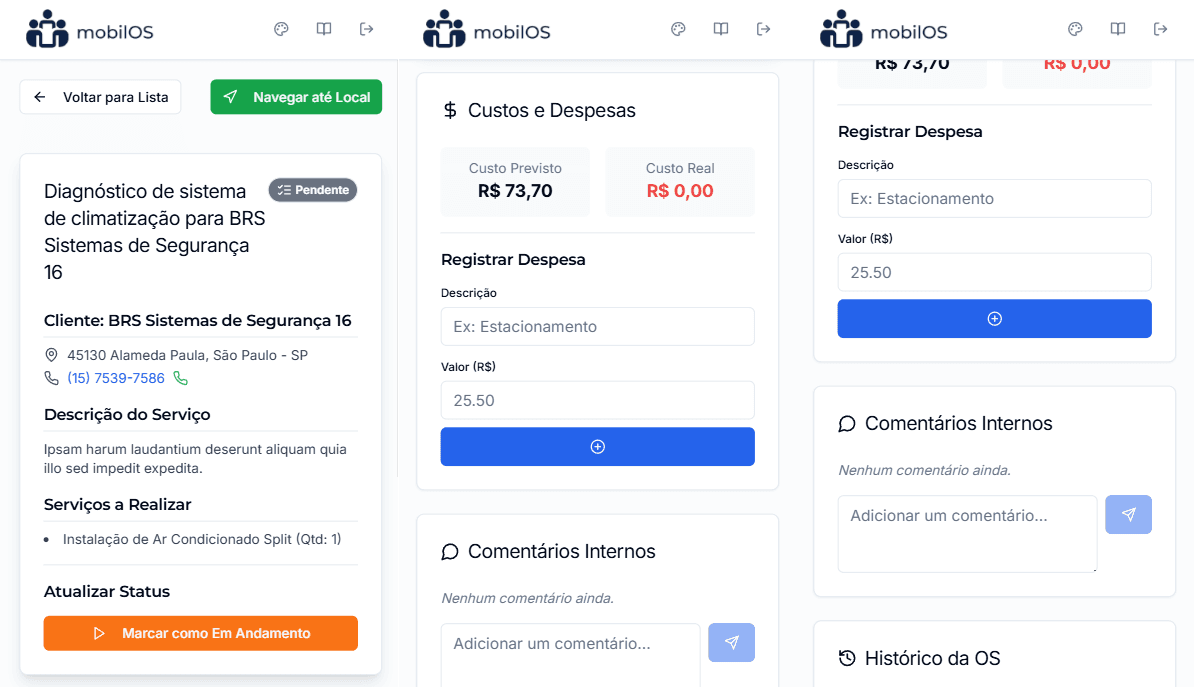
Review all this information carefully before starting the service. The 'Navigate to Location' button will open your device's default maps application with the service address.
Updating WO Status
It is crucial to keep the WO status updated so that the manager has visibility of the progress:
Start Service
When you arrive on site and are ready to begin, tap the 'Mark as In Progress' button.
Complete Service
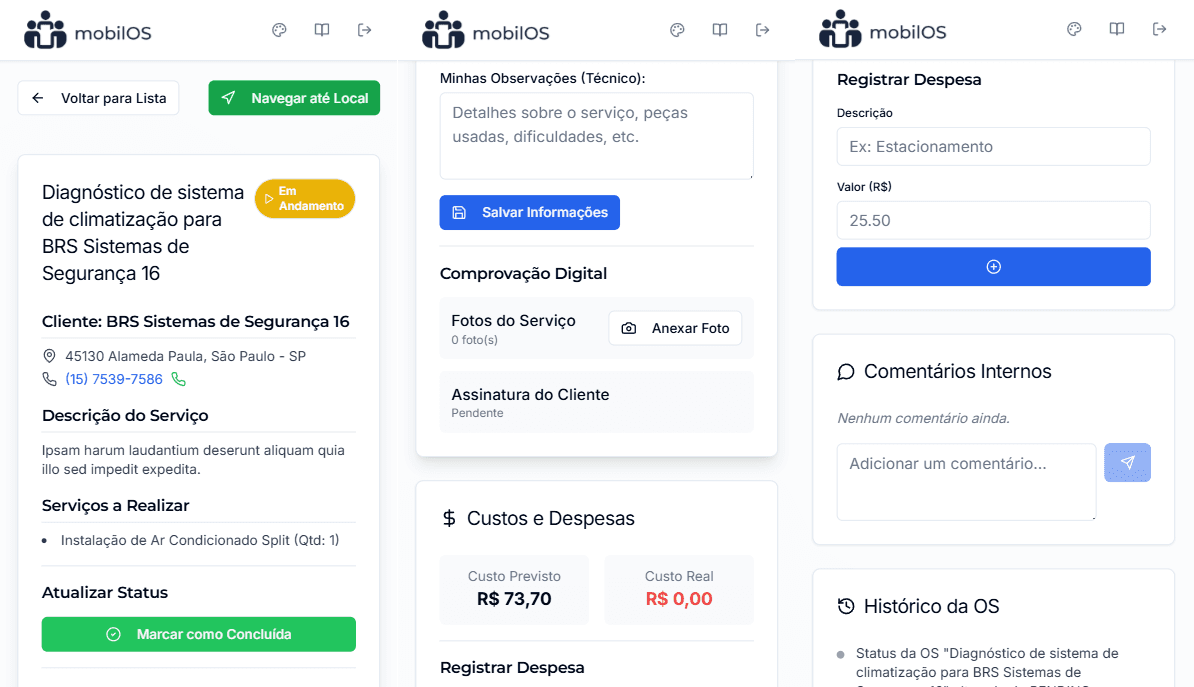
After finishing all work, registering proofs and observations (see below), tap the 'Mark as Completed' button.
Important about Completing WO
Once the WO status is changed to 'Completed' and the client's signature is collected, the WO is sealed and can no longer be edited by the technician.
Registering Additional Information
During or after service execution, you can (and should) register important information:
- Attended by (on-site): Name of the person who received you or accompanied the service.
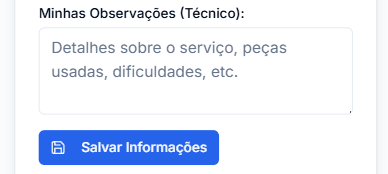
- My Notes (Technician): A free text field for you to add relevant details about the service, such as specific parts used or recommendations for the client.
- Register Expenses: Add extra costs related to the WO (e.g., parts, tolls).
Remember to click 'Save' after filling in or updating these fields.
Digital Proofs, Comments, and History
The WO details page also has sections for:
- Photos and Signature: Attach photos of the service performed and collect the client's digital signature.
- Comments: Exchange messages with the management team about the WO.
- History: See all activities and changes made to the WO.
Data Synchronization
The information you record in the technician's panel is synchronized in real-time (or as soon as there is an internet connection) with the manager's panel, ensuring that everyone has access to the latest data.
By using all these features, you ensure a complete and accurate record of the service provided, facilitating monitoring by the manager and increasing client satisfaction.