

Service Schedule
The Service Schedule is a powerful visual tool for managers to view, plan, and manage their team's Work Order (WO) appointments. It offers a clear view of technician workload and availability.
Calendar View
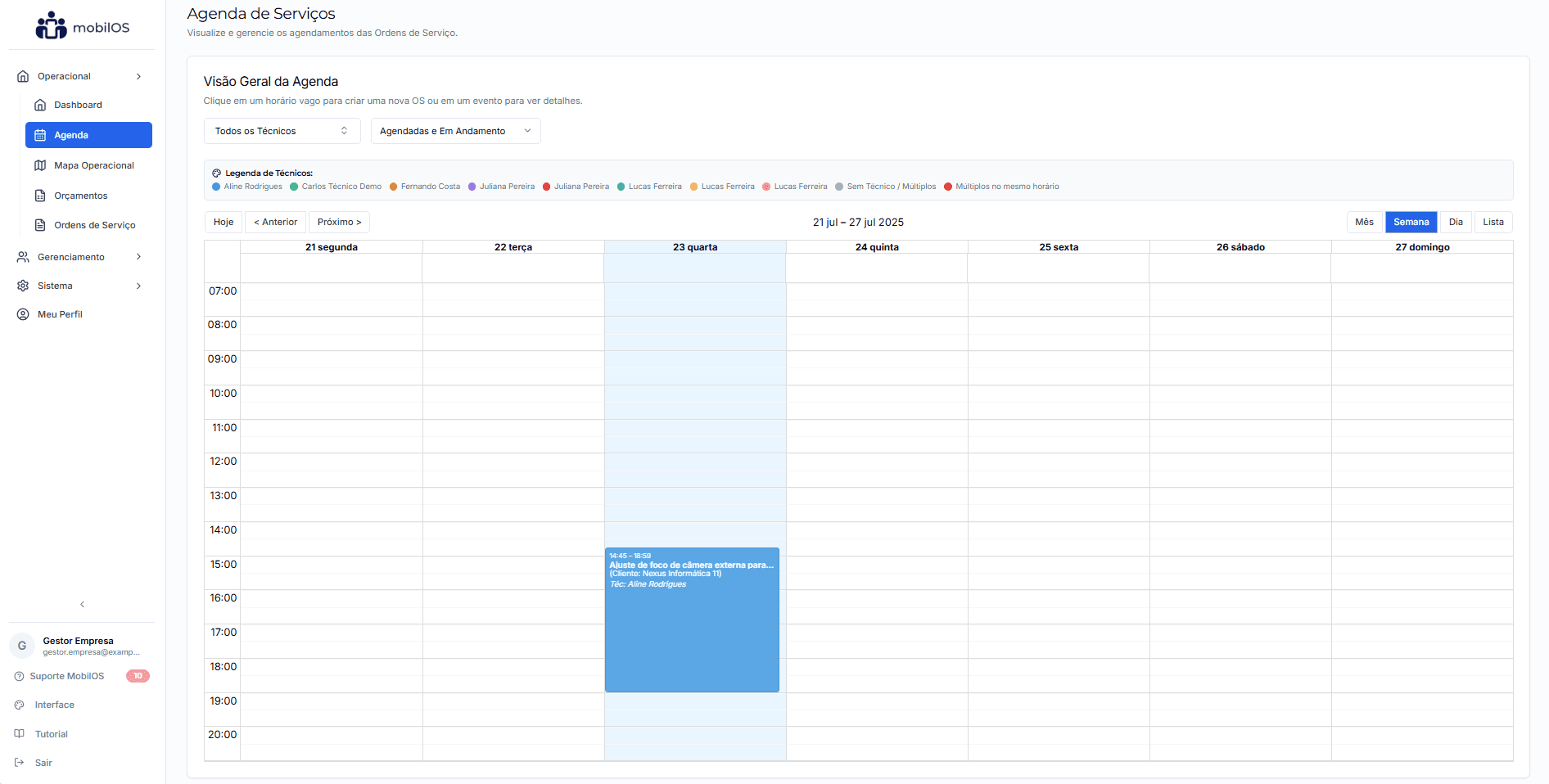
The schedule presents Work Orders in an interactive calendar format. You can switch between different views:
- Month: Overview of all appointments for the month.
- Week: Detailed view of current week's appointments (default view).
- Day: Focus on a specific day's appointments.
- List (Agenda): A chronological list of upcoming events.
Use the navigation buttons (< Previous, Next >, Today) to move through the calendar.
Filtering Appointments
To optimize your planning, the schedule offers powerful filters:
Filter by Technician:
Select a specific technician to see only the WOs assigned to them. Choose 'All Technicians' to see the complete schedule.
Filter by WO Status:
View WOs with specific statuses, such as 'Scheduled Only', 'Scheduled and In Progress' (default), 'Pending (no date)', or 'All Active'.

Technician Color Legend
When the 'All Technicians' view is active and a WO has only one technician assigned, the event on the calendar will be colored according to a legend for easy visual identification. If a WO has multiple technicians or none, or if a specific technician filter is active, the color may be standard or status-specific.
The technician color legend is displayed above the calendar, facilitating quick identification of which technician is allocated to which service.

Interacting with the Schedule
Create New WO from Schedule
Click on an empty time slot in the calendar (especially in Week or Day views).
A quick WO creation form will open, with the selected date and time already pre-filled. If a technician filter is active, that technician may also be pre-selected in the new WO.
View Details of a Scheduled WO
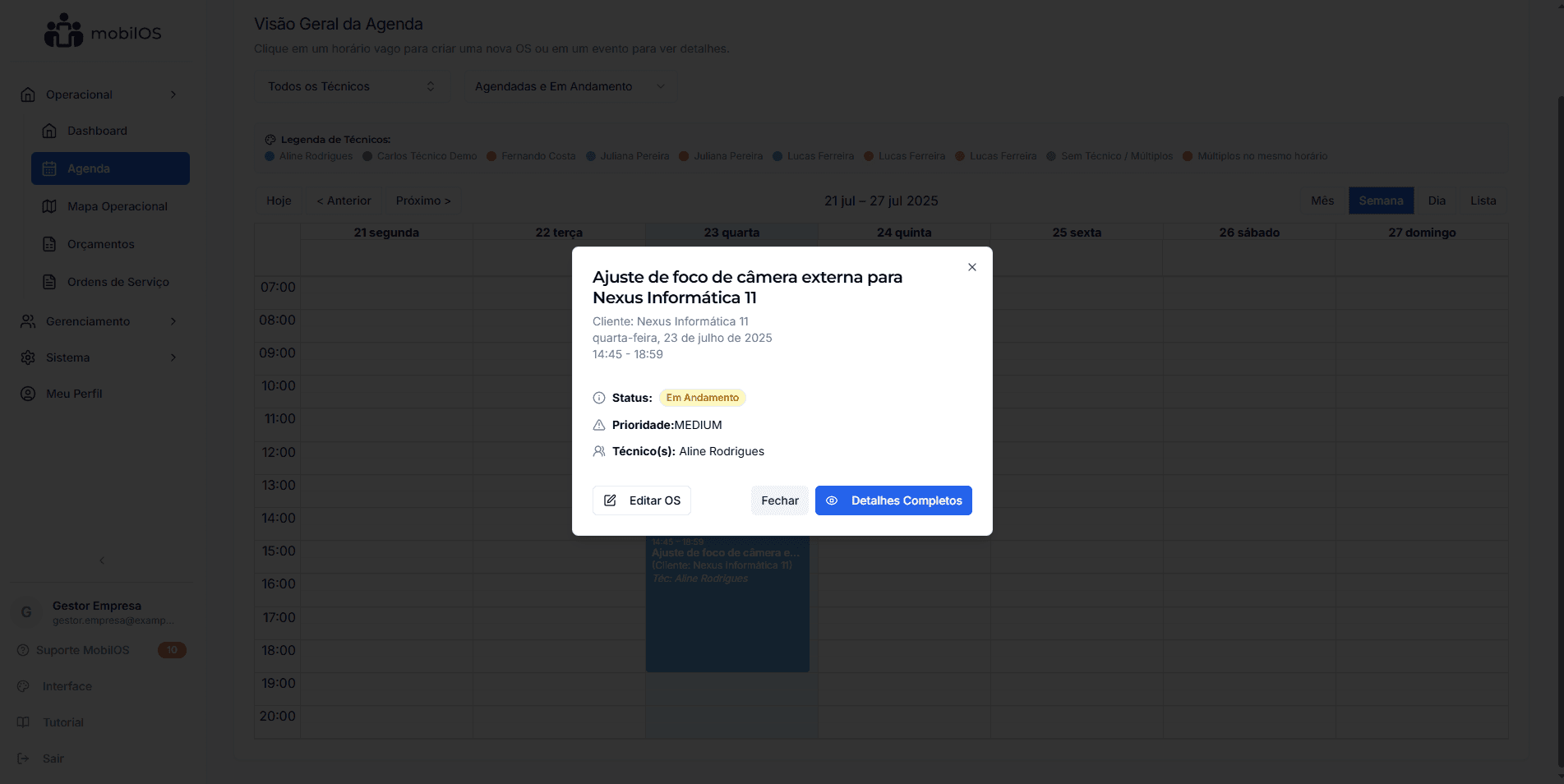
Click on an existing event (scheduled WO) in the calendar.
A modal (pop-up window) will appear with a summary of the WO, including:
- WO title and client name.
- Scheduled date and time.
- Current status and priority.
- Assigned technician(s).
Actions in the Quick Details Modal
Within the modal, you will have buttons for:
- Edit WO: Opens the Work Order editing form.
- View Details: Opens the complete Work Order details page.
- Close: Simply closes the modal.
Drag and Drop
Currently, the functionality to reschedule WOs by dragging and dropping directly on the calendar is not implemented. To reschedule, edit the WO and change the date/time.
The Service Schedule is a central tool for effective planning of your operations. Use the filters and different views to keep your team organized and your clients satisfied.