

Managing Clients
This section details how to register, view, edit, and delete clients in the manager panel. Maintaining an organized client register is fundamental for a good workflow and effective relationship management.
Why manage clients?
A well-structured client register allows you to:
- Streamline the creation of quotes and Work Orders.
- Maintain a history of services provided for each client.
- Facilitate communication and follow-up.
- Manage specific equipment for each client.
Registering a New Client
To add a new client to the system, follow the steps below:
Access the Clients Area
In the manager panel's side menu, in the Management section, click on 'Clients'.
Start Registration
On the client listing page, locate and click the New Client button, usually positioned in the upper right corner.
Fill in the Form
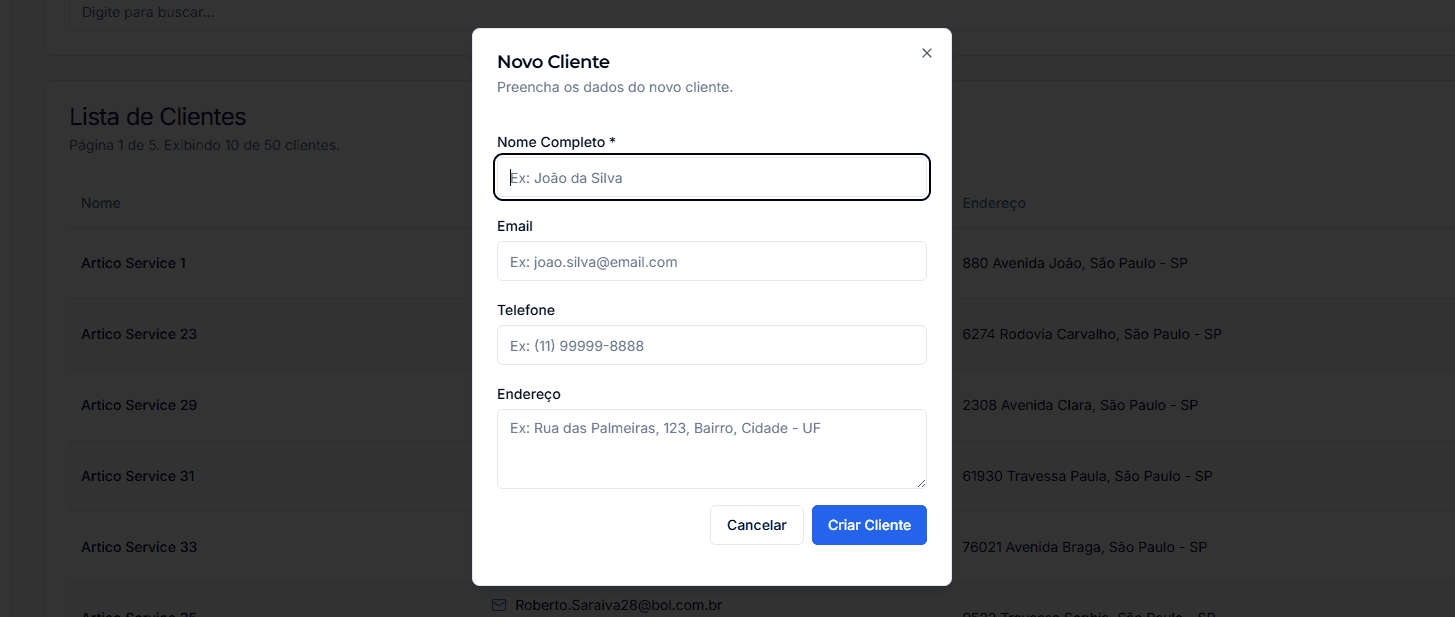
A form (modal or page) will be displayed. Fill in the requested information carefully:
- Full Name *: The name of the client or client company. (Required field)
- Email: The client's primary email address, useful for sending quotes and communications.
- Phone: The primary contact phone number.
- Address: The client's full address. This address can be used as default for Work Orders.
Save the Client
The new client will be added to the list and will be available to be linked to quotes and service orders.
Viewing and Editing Clients
The 'Clients' page displays a list of all clients registered in your organization. You can use the search bar to quickly find clients by name, email, or phone.
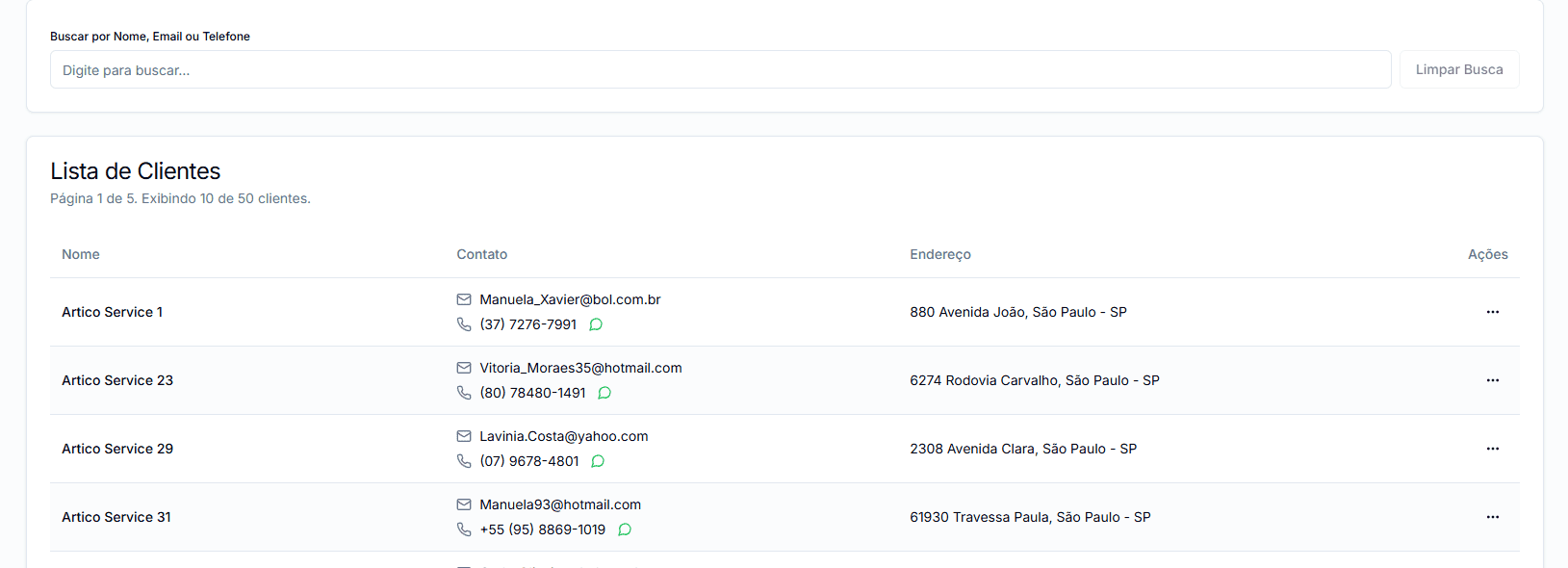
For each listed client, a 'More Options' menu (usually a three vertical dots icon) offers the following actions:
Edit Client
Allows modifying the client's registration information.
View Equipment
Accesses the equipment management screen linked to this client.
New Quote
Starts the creation of a new quote already associated with this client.
New WO
Starts the creation of a new Work Order already associated with this client.
Delete Client
Removes the client from the system.
Attention
Managing Client Equipment
For each client, you can register and manage a list of equipment.
By accessing a client's equipment page (via the client's action menu or navigating directly), you can:
- Add new equipment with details such as name, brand, model, serial number, location, and installation/last service dates.
- Edit information of already registered equipment.
- View the history of Work Orders that have been linked to specific equipment.
- Delete equipment, provided it is not linked to any active or historical Work Order.
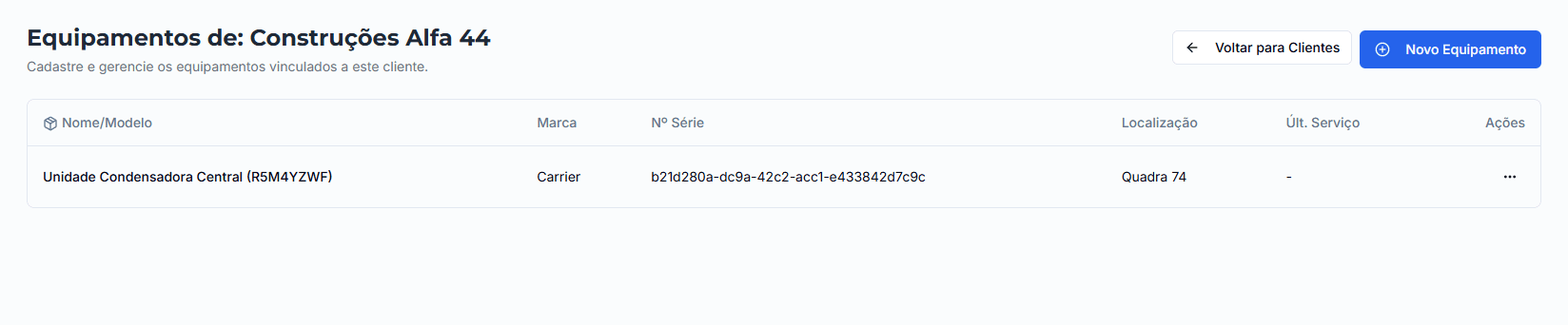
Linking WOs to specific equipment helps build a valuable maintenance history, facilitating future diagnoses and tracking the lifespan of your client's assets.
Important Considerations
Deletion Restrictions
Remember that deleting a client is only possible if they are not associated with any Work Order or Quote. This is a security measure to preserve the integrity of your operational history.
Updated Data = Efficiency
Keeping client data and their respective equipment always updated is crucial. Correct information facilitates the creation of WOs and quotes, improves communication with the client, and streamlines the work of technicians in the field.