

Inviting Users to your Organization
MobilOS allows you to work as a team. As a manager, you can invite other users to your organization with different access levels, such as coordinators and technicians.
User Types and Roles
MobilOS has three main user types within a client organization, each with different access levels and permissions:
Additionally, there are roles related to the Support Module, which can be assigned to existing users.
Inviting Team Members
To add Coordinators and Technicians to your team:
Access the Team Area
In the side menu, in the 'Management' section, navigate to 'Team'.
Start Registration
On the team members listing page, click the 'New Member' button.

Fill in the Data
A form will be displayed. Fill in the following information:
The team member can (and should) change this temporary password after the first login.
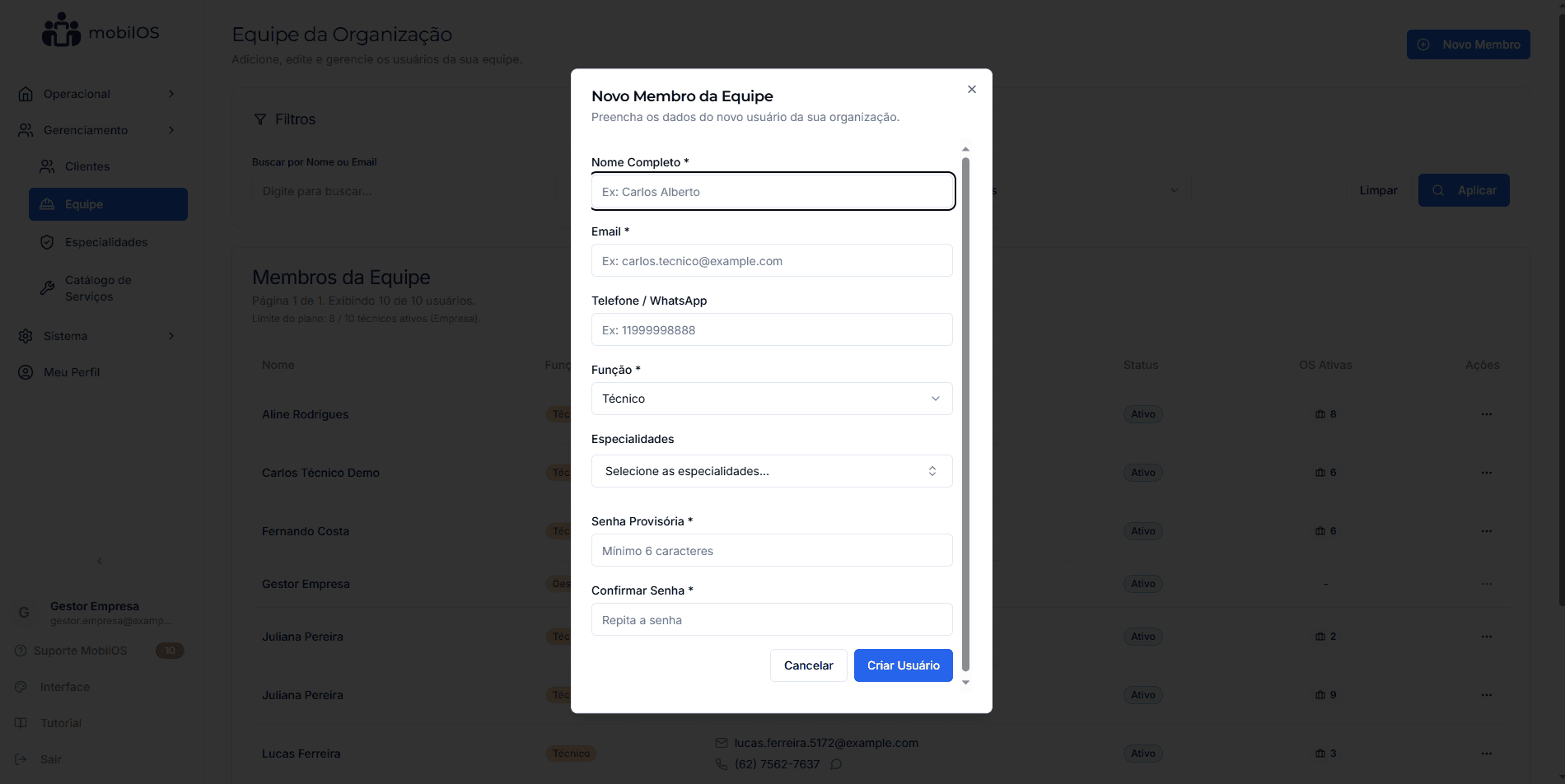
Provide Credentials
Technician Limit
Remember that your subscription plan may have a limit on the number of active technicians you can register. If you reach the limit, you will need to deactivate an existing technician or consider a plan upgrade.
See the Managing your Team guide for more details on activation/deactivation and other options.
Adding other Managers
Currently, the user who creates the organization is the main MANAGER. The functionality to add multiple users with the MANAGER role to the same organization is planned for future updates.
If you have an immediate need to add another manager, please contact OS-PRO support for assistance.