

Managing Your Team
Your team is the front line of your operation. MobilOS facilitates the registration, role management, and tracking of your team, ensuring that Work Orders are assigned correctly and that you have visibility into each person's workload.
Team Roles in MobilOS
In the system, you can manage different user roles within your organization:
- COORDINATOR: Has access to operational functionalities, such as creating and managing WOs and clients.
- TECHNICIAN: Has access to a simplified panel to view and update WOs assigned to them.
Registering a New Member
To add a new member to your team:
Access the Team Area
In the manager panel's side menu, in the 'Management' section, click on 'Team'.
Start Registration
On the team listing page, click the New Member button.
Fill in the Member's Data
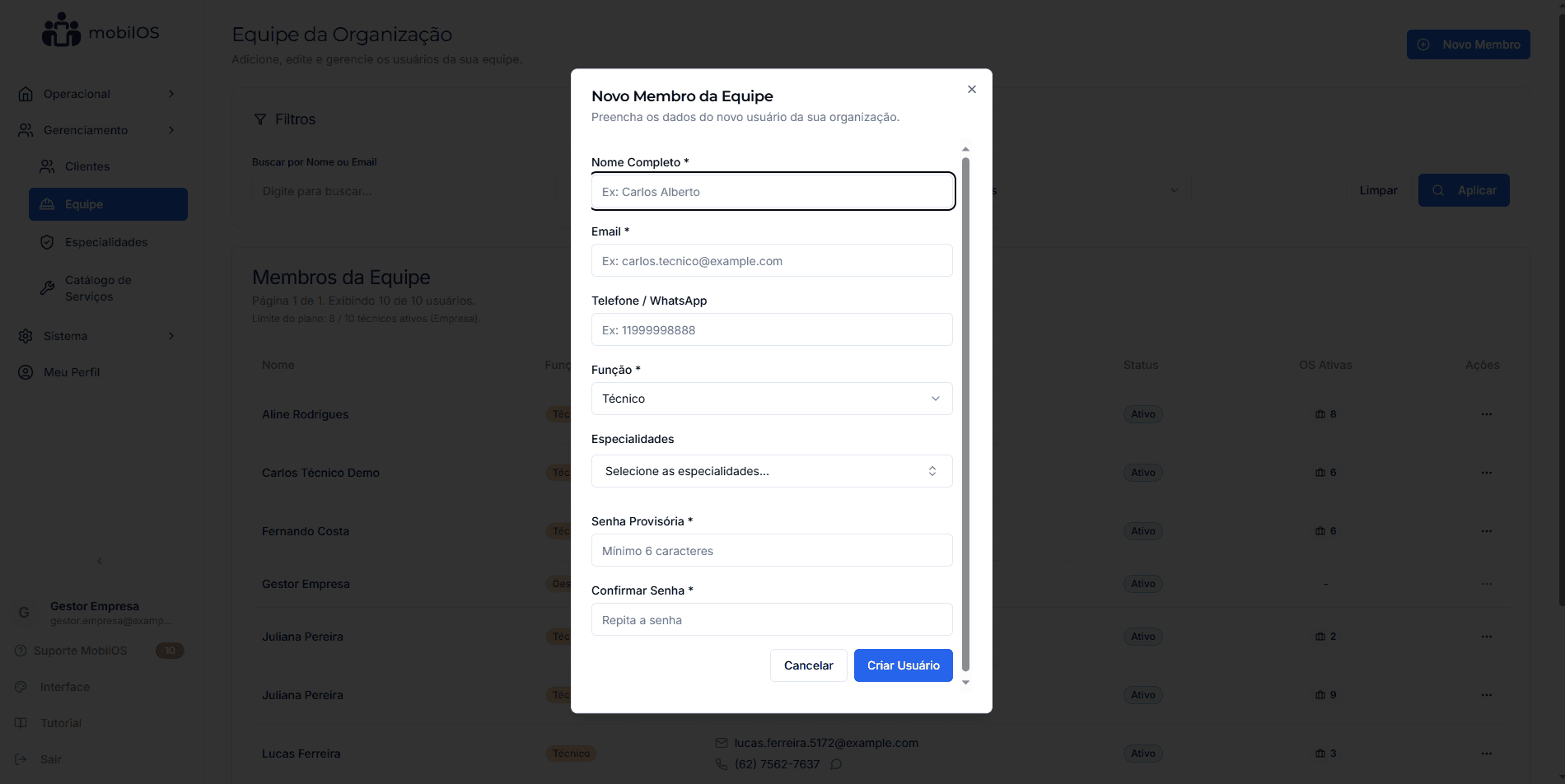
A form will be displayed. Provide the following information:
- Full Name *: The full name of the member.
- Email *: The email address that will be their login in the system.
- Role *: Select the user's role in your organization (Technician or Coordinator).
- If the role is 'Technician', you can also assign the specialties they possess.
- Temporary Password *: Create an initial password for the user.
The user can change this temporary password after the first login by accessing 'My Profile'.
Technician Limit per Plan
Remember that your subscription plan may have a limit on the number of active technicians. If you reach the limit, you will need to deactivate an existing technician or consider a plan upgrade. Check your Subscription.
Managing Members in the List
The 'Team' page displays all registered users in your organization. You can use the filters to search by name/email, status (Active/Inactive), or role.
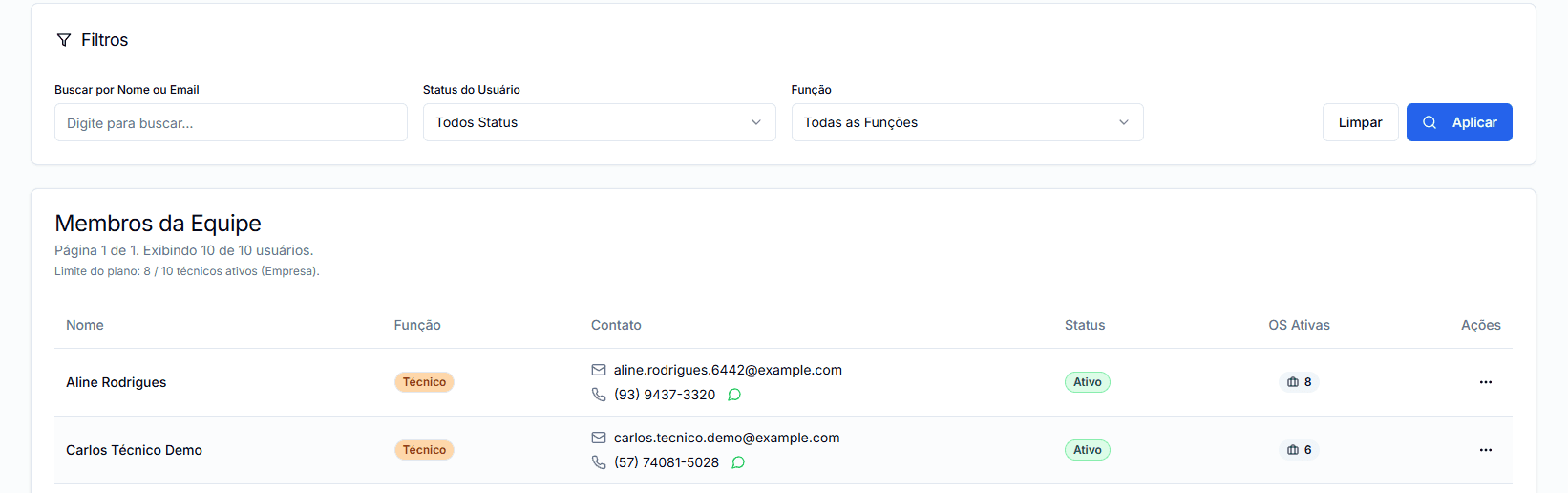
For each member, the list displays information such as name, email, role, status, and active WOs (for technicians).
Actions per Member
In the 'More Options' menu for each member, you can:
- Edit Data: Allows changing name, email, role, and specialties.
- Activate / Deactivate: Changes the user's status. Inactive users cannot log in or be assigned new tasks.
WO Reassignment
When deactivating a technician, the WOs assigned to them are not automatically reassigned. You will need to edit those WOs and assign them to other active technicians.
Effective management of your team is vital for the quality and agility of your services. Keep records updated and monitor workload to optimize performance.