

Specialties and Smart Suggestion
Optimize Work Order (WO) assignment with the specialties system. Register your team's and services' qualifications to receive smart suggestions for the best technician for each task, considering availability, workload, and location.
Benefits of the Feature
- Accuracy: Send the technician with the correct qualification for the service.
- Efficiency: Balance the workload among technicians.
- Planning: Avoid schedule conflicts and optimize your team's time.
- Quality: Increase client satisfaction with a service performed by a specialist.
1. Registering Specialties
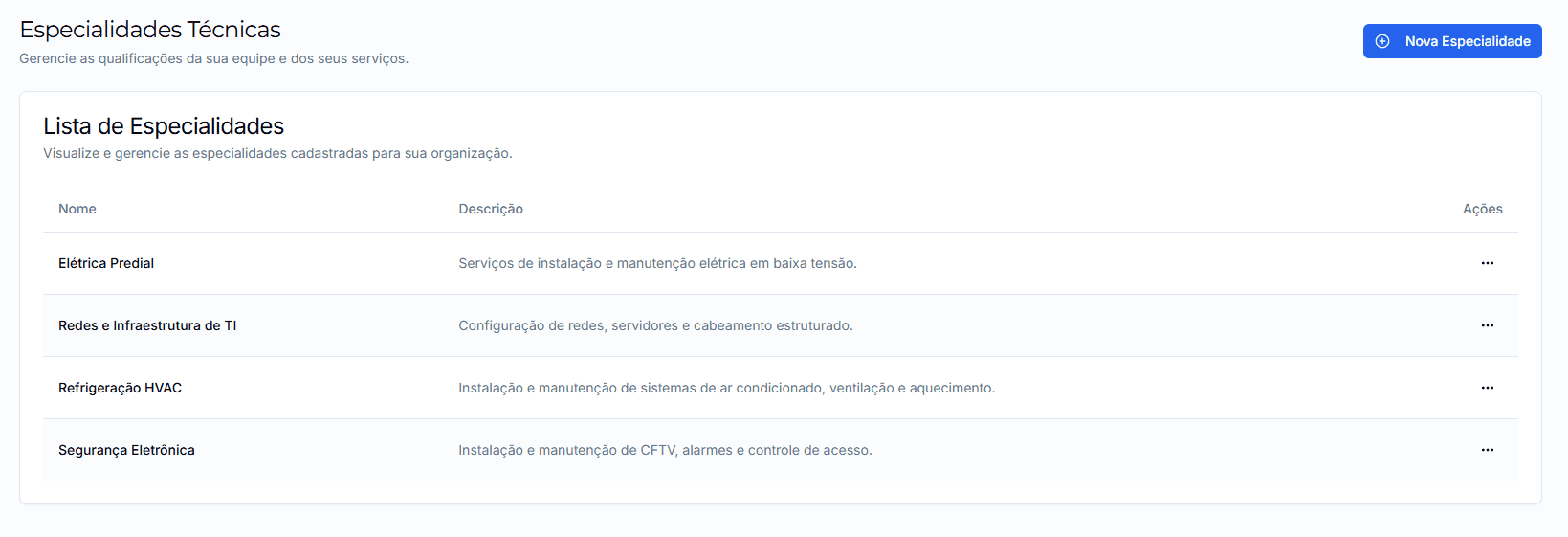
The first step is to create a catalog of the specialties your company works with.
Access the Specialties Page
In the manager panel's side menu, in the 'Management' section, click on 'Specialties'.
Create a New Specialty
2. Associating Specialties
With specialties registered, you need to link them to your technicians and services.
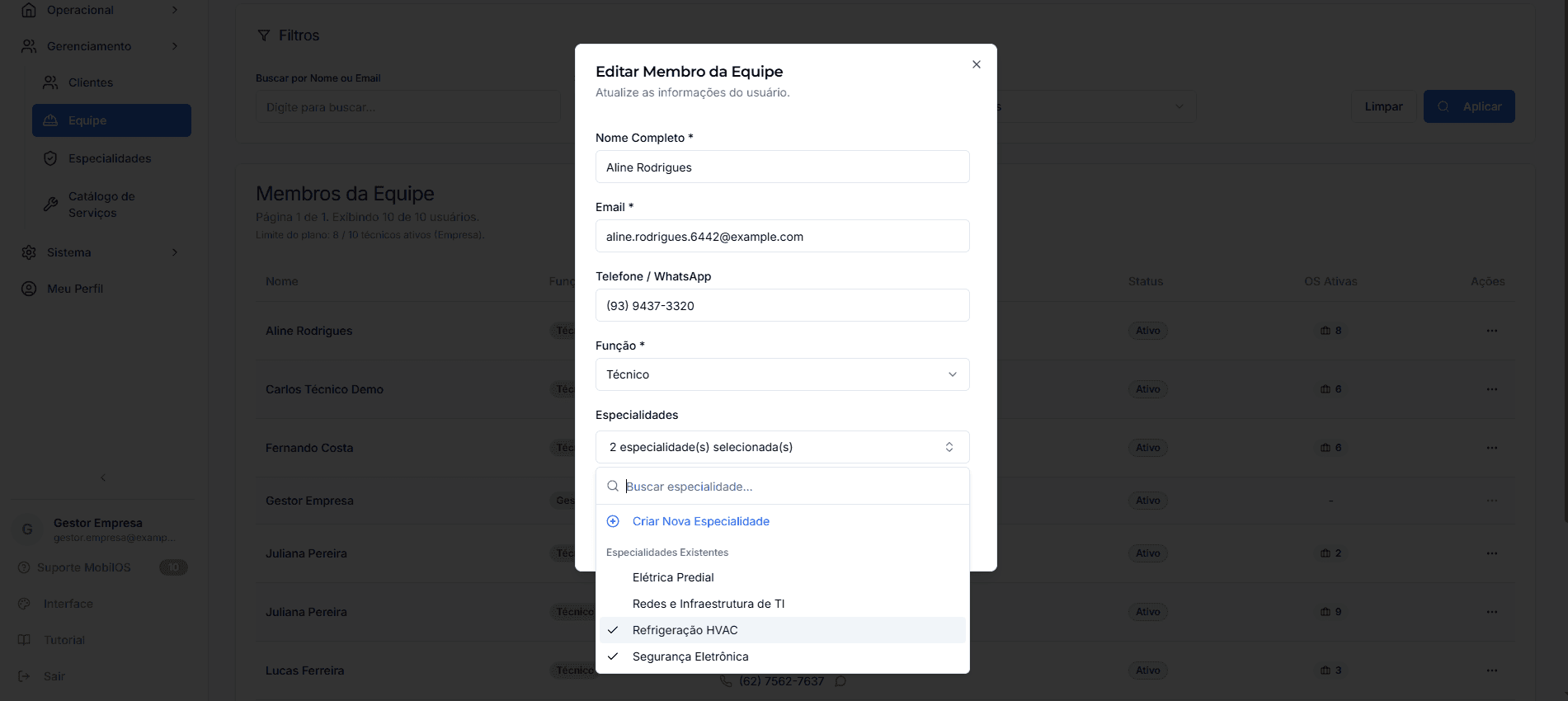
Assign to a Team Member
Go to the Team page, edit a member with the 'Technician' role, and select the specialties they possess in a new multi-selection field.
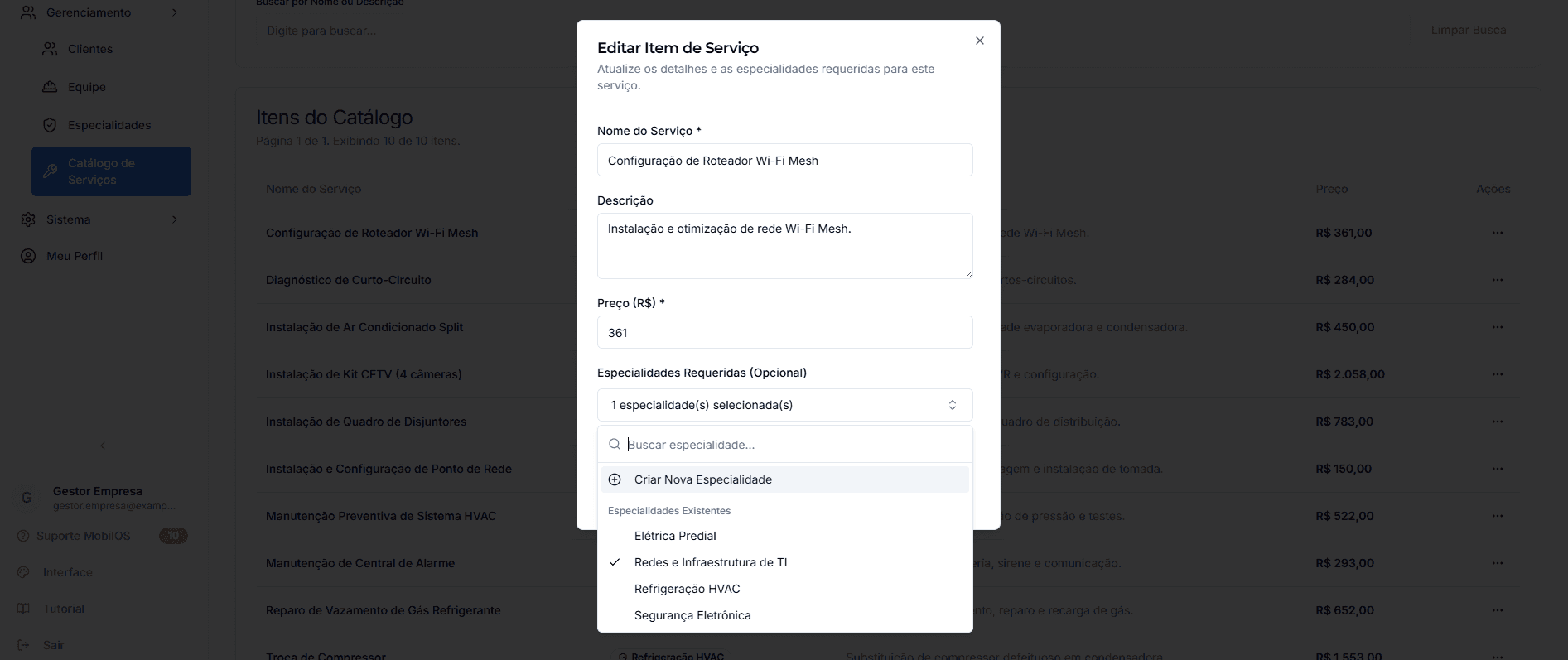
Require for a Service
Go to the Service Catalog, edit a service, and select the specialties required to perform it.
3. Using Smart Technician Suggestion
Now the magic happens when creating or editing a Work Order.
Fill in Prerequisites in the WO
For the suggestion to work, you need to fill in the crucial information in the 'Scheduling and Technician(s)' step:
- Services: Add the services to be performed in Step 3. The system will use the specialties linked to them.
- Manual Specialties: You can also add specialty requirements manually in this step.
- Scheduled Date and Time: Define when the service should occur.
- Estimated Duration: Enter the duration in minutes for a more precise conflict check.
Ask for a Suggestion
In the 'Scheduling and Technician(s)' step, a Suggest Technicians button will be available. Click it.
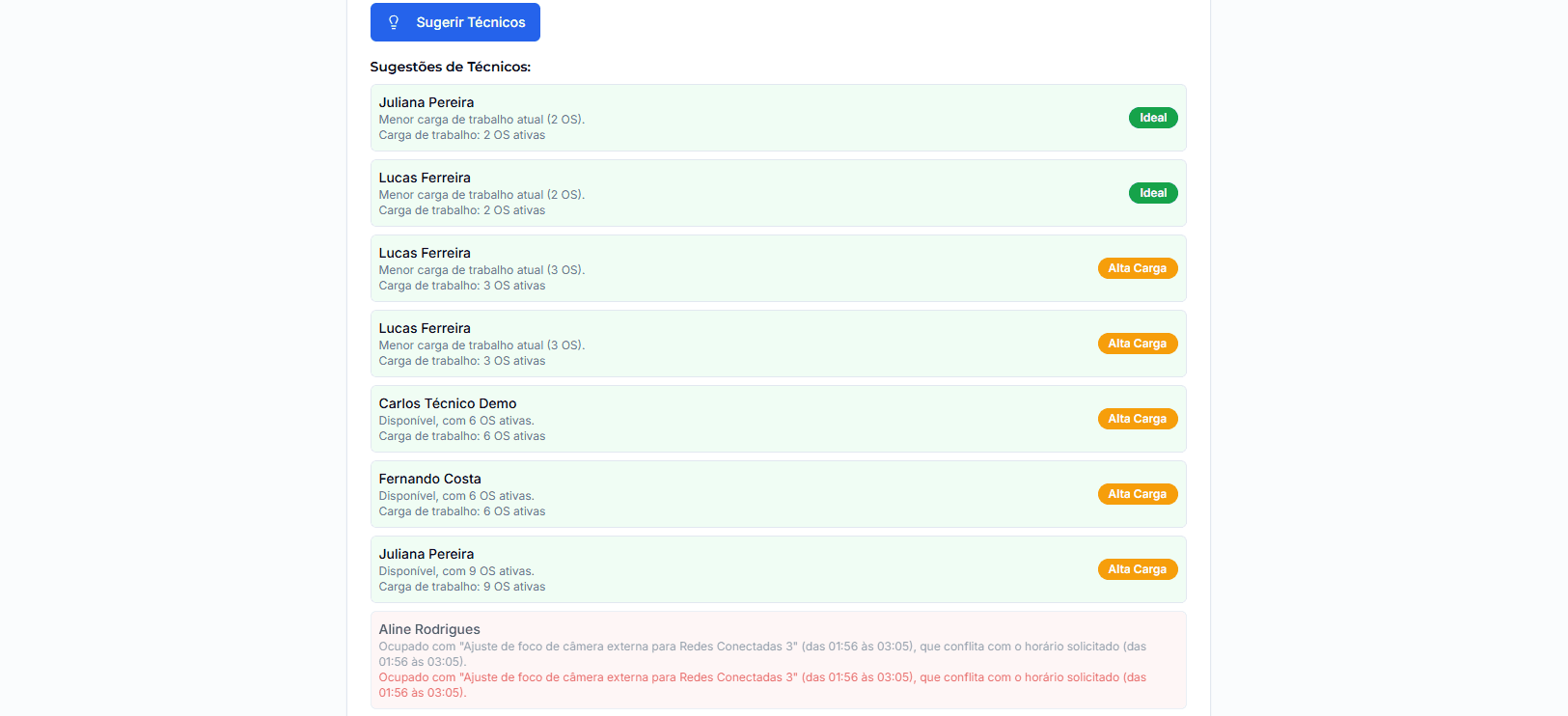
Analyze Suggestions
The system will display a list of technicians, ranked by the best option, considering:
- Qualification: Only technicians with ALL necessary specialties are shown.
- Availability: Checks if the technician has schedule conflicts at the requested time.
- Workload: Technicians with fewer active WOs are prioritized.
Use this information to make the smartest and most efficient assignment!
This smart system saves you analysis time and increases the chances of success in each service, always sending the right person for the job.